Initialize Server
Before creating a project, you need to connect a server to Depfloy. Servers are the Linux machines your applications run on. You can either let Depfloy provision a new server through a connected provider — Hetzner, AWS or DigitalOcean — or you can bring your own server, any clean Ubuntu machine you can reach over SSH.
Server types #
Pick the server type that matches what you’ll do on it. Depfloy provisions the right software stack for each.
- App Server — runs your web applications. Comes with nginx, PHP, and the build tooling needed to deploy projects. The most common type.
- Database Server — dedicated to a database engine. Pick MySQL, PostgreSQL, or ClickHouse during setup. See Database Server.
- Cache Server — runs Redis (or Valkey) as a dedicated cache instance. Useful when you want cache traffic isolated from your app server. See Cache Server (Redis).
- Meilisearch Server — runs Meilisearch as a dedicated search instance. See Meilisearch Server.
- Load Balancer — distributes traffic across multiple App Servers. See Load Balancer.
You can mix server types within the same organization — for instance, an App Server, a separate Database Server, and a Load Balancer in front of multiple App Servers.
Server requirements #
Depfloy supports a clean install of:
- Ubuntu 26.04 LTS
- Ubuntu 24.04 LTS (recommended)
- Ubuntu 22.04
Ubuntu 20.04 has reached the end of its standard support and is no longer offered when creating a server. Existing 20.04 servers are unaffected and keep working as before.
The server should also:
- Be reachable from the public internet over SSH
- Allow root SSH access (Depfloy disables password-based root login during provisioning)
- Have at least 1 CPU core, 1 GB RAM, and 10 GB free disk
- Have
curlavailable - Not be throttling SSH from Depfloy at the network or firewall level
- Not have antivirus software interfering with installation
These are requirements for a machine you connect yourself. When Depfloy creates the server through a provider it prepares all of this for you — including root SSH on AWS, where Ubuntu images ship with it disabled.
If your server is behind NAT and the public SSH port differs from the internal SSH port, tick the This server is behind a NAT checkbox during setup and provide the internal port. Depfloy will configure the firewall to match.
Connecting a provider #
If you connect a Hetzner Cloud project, an AWS account or a DigitalOcean token under Configuration → Server Providers, Depfloy can create the server for you in minutes — no command line needed.
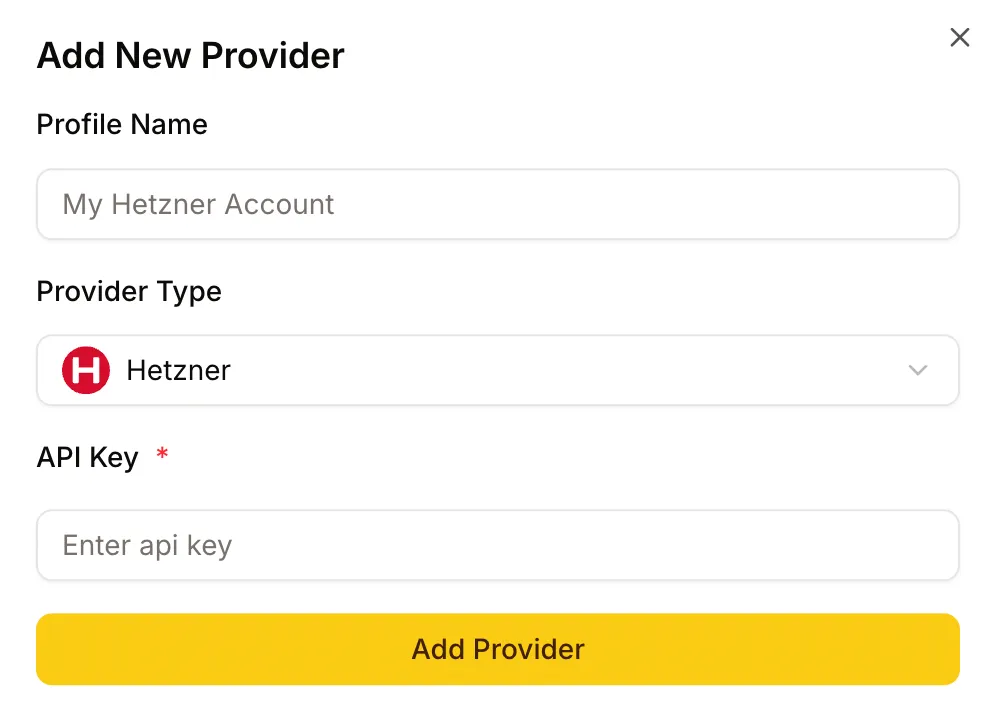
Adding a server #
- Open the Console.
- Click Add Server in the header.
- Give the server a name and pick its type.
- Pick a provider (Hetzner, Amazon Web Services, Digital Ocean, or Custom Setup).
- Optional: tag the server with an environment (Production / Staging / Dev) so it’s easier to find in your sidebar.
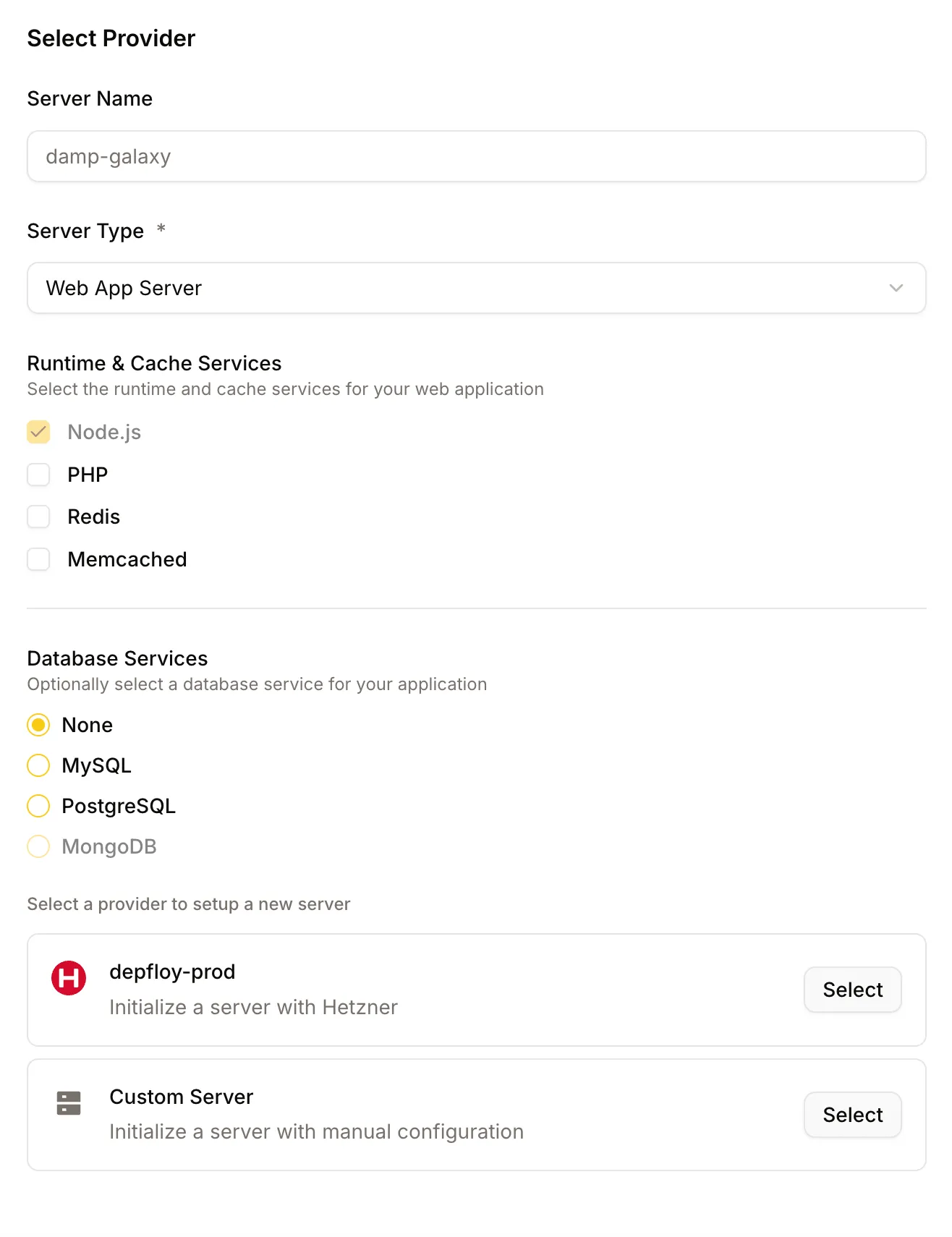
Every provider flow starts with where the server should run, then what it should be. The size list is searchable and can be narrowed by CPU architecture, core count, memory and monthly price; it is ordered by price, so the cheapest size that fits sits at the top.
Hetzner setup #
Pick the location, instance size, and any extras (private network), then click Create Server. Depfloy creates the machine on Hetzner, attaches its SSH key, and starts the install — you do not need to log into Hetzner directly.
AWS setup #
Pick the region first. The list searches on city as well as region code, so “frankfurt” finds eu-central-1. Then:
- VPC and subnet — the VPCs in that region with their subnets, your default VPC preselected. The subnet decides which availability zone the instance runs in.
- Instance type — priced monthly from AWS’s on-demand list price for that region. Both x86 and Arm (Graviton) types are offered, and Depfloy picks the matching Ubuntu image for whichever you choose, so AMI ids never come into it.
- Root volume — size in GB (30 by default, 20 minimum) and type: gp3, gp2 or io2.
- Elastic IP — on by default, giving the server a fixed public address.
Click Create Server. Depfloy launches the instance, creates its key pair and security group, and starts the install without you opening the AWS Console.
About the Elastic IP. AWS bills every public IPv4 address by the hour, an Elastic IP among them, so turning this off does not avoid the charge — it gives up the fixed address for the same money. Without one, AWS hands out a different public IP each time the instance is stopped and started, which breaks any DNS record pointing at the server. Depfloy releases the address when you delete the server.
Deleting the server in Depfloy removes everything it created in your account: the instance, the key pair, the security group and the Elastic IP.
DigitalOcean setup #
Pick the region first, then the droplet size — priced monthly in USD, straight from DigitalOcean’s own size list, and the same figure in every region. Basic, Premium, General Purpose, CPU-Optimized and Memory-Optimized droplets are offered; Storage-Optimized and GPU droplets are not. Three settings follow:
- VPC — optional. Left unset, the droplet joins the region’s default network, and the picker labels which one that is. Only VPCs in the region you chose are listed.
- Create a Cloud Firewall — on by default. It lets in SSH, HTTP and HTTPS (ports 22, 80 and 443) from anywhere and allows all outbound traffic.
- Use a Reserved IP — off by default.
There is no image to pick: Depfloy turns the Ubuntu release you selected into DigitalOcean’s slug for it and checks that against the images the account can see, so a release they have no image for is refused before anything is ordered.
About the Cloud Firewall. It filters both directions, and a DigitalOcean firewall with no outbound rules blocks all outgoing traffic — which would stop the install at its first package download. Depfloy therefore writes the outbound rules as well as the inbound ones. It does not replace UFW on the machine: the install configures UFW with the same three ports, and the Cloud Firewall repeats them at DigitalOcean’s edge, where a mistake in UFW cannot undo them. Rules you add under the server’s Firewall section apply to UFW.
About the Reserved IP. A droplet keeps its own public IPv4 address for as long as the droplet exists, so this is not what gives the server a stable address — it already has one. A Reserved IP is worth turning on when you want to be able to move that address to a different droplet later. It is free while attached to a droplet and billed by the hour when it is not. Turn it on and the Reserved IP becomes the address Depfloy manages the server by and the one to put in DNS.
Click Create Server. Depfloy adds an SSH key to your account, creates the droplet, waits for it to come up, then attaches the firewall and the Reserved IP if you asked for them. Deleting the server in Depfloy releases all four.
Custom setup #
Pick Custom Setup instead and enter the server’s public IP. Depfloy gives you a one-line bootstrap command to paste into a root SSH session on your server. Once the script finishes (typically 10-15 minutes), Depfloy detects the connection and the server is ready.
What happens during install #
While the server is being prepared, opening it in the Console shows the Server Setup screen with progress and (for Custom Setup) the bootstrap command. When the install finishes, the server switches to its normal management view.
New App Servers are provisioned with the current stable release of nginx, so recent nginx features and fixes are available without any manual upgrade.
If install fails, the Setup screen shows where it stopped and what to try next.
Environment tagging #
Every server can be tagged with an environment: Production, Staging, or Dev. Tags are optional — leave a server untagged if it doesn’t fit a category — but they earn their keep when you have a lot of servers:
- Filter the sidebar by environment
- Group the sidebar by environment so production servers always sit together
- Spot at a glance which alerts came from production vs. dev
You can tag a server during creation or change it later from the Server Overview.
You’ll be notified when ready #
You’ll receive a notification when the server is fully set up and ready for projects. From this point you can create your first project.