Known Issues
This guide collects the most common things that go wrong while using Depfloy, and what to do about them.
Reached Heap Limit Allocation Failed Error #
This error occurs when the server does not have sufficient RAM. Building frameworks like Next.js, Nuxt.js or React Router wants at least 2 GB depending on the size of your application, and two builds running together on a low-RAM server can exhaust it.
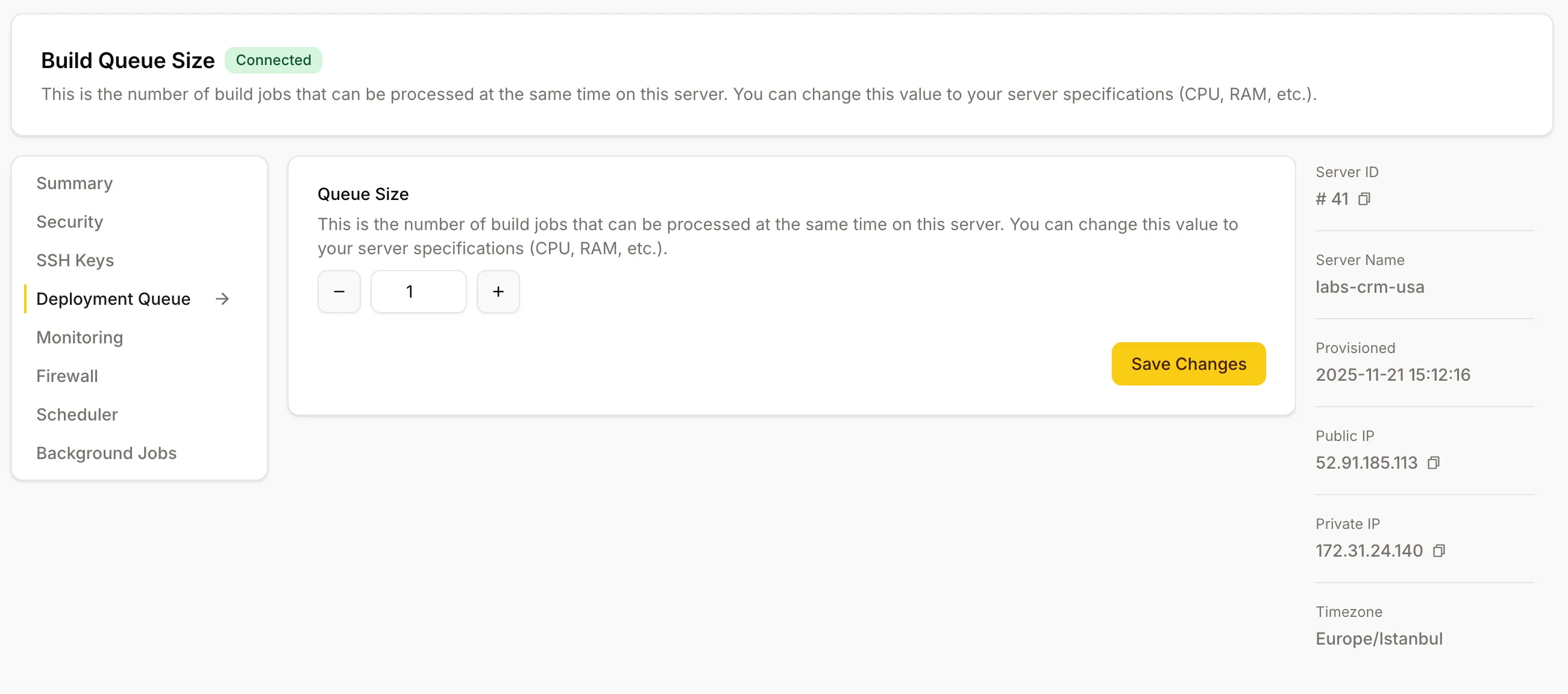
Open the Concurrent Deploys screen on the affected server (Console → server → Concurrent Deploys) and set a limit — on a low-RAM box, 1. There is no cap until you set one, so by default nothing stops several builds from starting together. See Concurrent Deploys for guidance.
Uncommitted Commits During Deployment #
This error may occur when files under source control within the site directory have been changed by the application and will be overwritten by the fresh deployment. Depfloy will always reset your project to the main branch. Remember that if your application makes changes to files, they will be reset after each deployment.
If your application generates files at runtime that you want to keep across deployments, place them in a custom shared directory rather than tracking them in Git.
Project stuck in deploying status #
A deployment that takes longer than 25 minutes is automatically marked as failed and can be retried — you should not see a permanent “stuck” state any more. If you do see one, two things to try:
- From the Deployments list, find the affected deployment and click Rerun. This re-deploys the same commit and clears any leftover state.
- As a last resort, the project menu has a Reset Deployment Status action. If a deployment is genuinely still running, you will see a warning before it lets you reset — only confirm if you are sure.
“Realtime updates paused” amber banner #
If you see an amber banner at the top of Depfloy reading “Realtime updates paused — reconnecting…”, the connection between your browser and Depfloy that delivers live updates has dropped. Common causes are corporate proxies, captive portals, restrictive VPNs, or restrictive Wi-Fi.
The page itself keeps working — only the live updates (deployment progress, log streaming, monitoring) are paused. Try the Reload button in the banner. If that does not help, switch network (mobile hotspot, different Wi-Fi) or contact your network administrator about WebSocket access.
Custom deployment commands #
Depfloy lets you add a custom shell command that runs after every deployment (Project → Settings → Custom Deploy Command). Two things to keep in mind:
- Don’t call
php artisan reverb:restartfrom your custom command. Depfloy already restarts Reverb (and other Laravel plugins) for you after a deploy — calling it again from your script causes a conflict that can hang the whole deployment. - Keep commands short. A custom command is for a quick post-deploy step (warm a cache, signal another service, ping a dashboard). It is not the place to run a long migration backfill or any long-running job — those belong in your project’s deploy pipeline or in a one-off Command (Project → Commands).
502 Error After Deploying a Node.js Project #
If your Node.js project returns 502 errors after every other deployment, it is likely caused by a hardcoded port in a custom nginx configuration. Depfloy uses blue/green deployment for Node.js projects, which rotates the application port on each deployment. If your nginx configuration uses proxy_pass http://127.0.0.1:3093 instead of the upstream alias, it will point to the old port after deployment.
Solution: Replace the hardcoded port with the upstream alias in your nginx configuration. See Nginx Configuration — Node.js Upstream for details.