Concurrent Deploys
If you deploy several projects on the same server, running their builds at the same time can blow past the server's RAM. Depfloy lets you cap how many deploys run concurrently — the ones past the cap wait in a queue until a slot frees up.
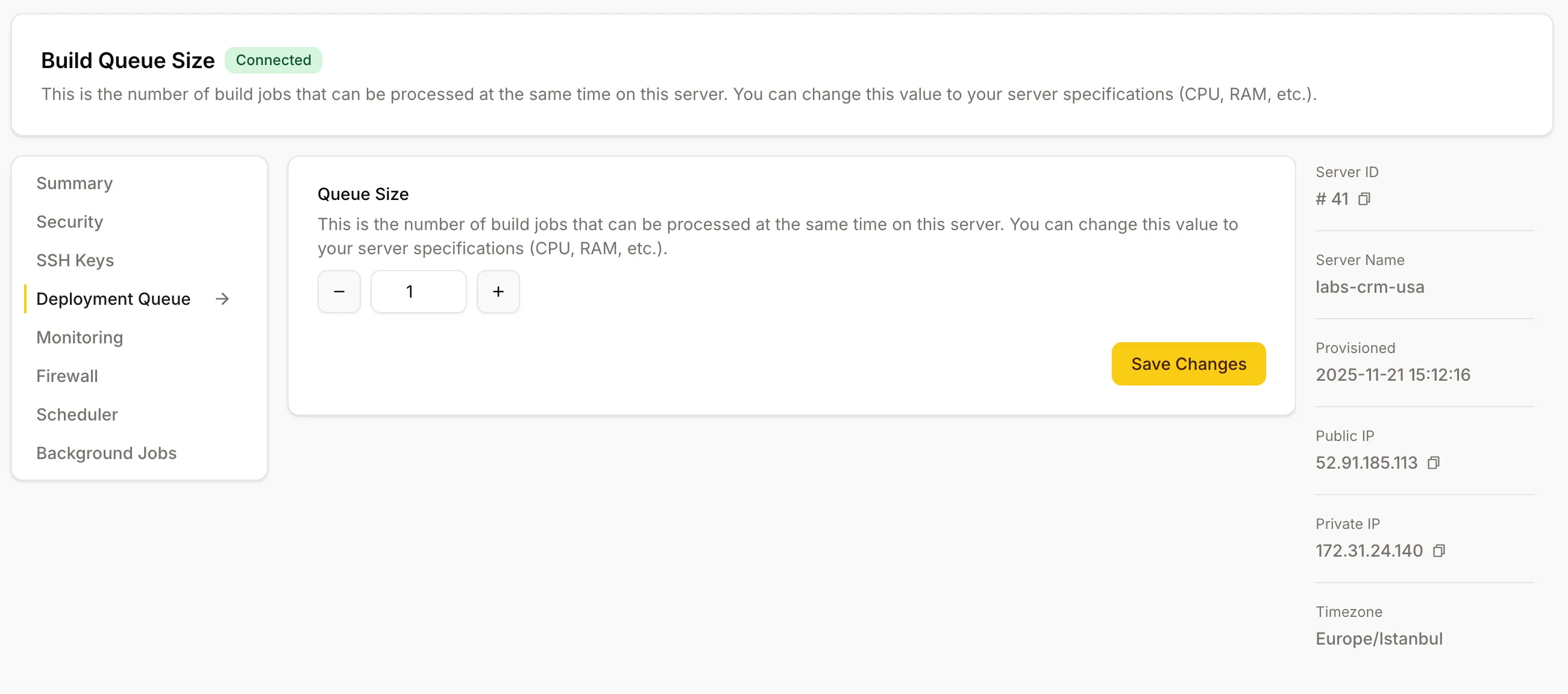
The Concurrent Deploys screen lives on a server’s view in the Console.
There is no cap until you set one. A server starts with deploys running as they arrive, on every plan — including all of them at once if that is how they arrive.
When to set a limit #
You need it when you’ve seen, or you’re worried about seeing:
- “Reached Heap Limit Allocation Failed” errors during a Next.js / Nuxt / React Router build
- The server freezing because two big builds tried to run at the same time
- Slow web responses to your live site every time deployments happen
The fix: tell Depfloy to deploy at most N projects concurrently on this server, and it’ll queue the rest.
Setting the limit #
- Open the server in the Console.
- Switch to the Concurrent Deploys screen.
- Set the maximum and save. Leave the field empty to go back to no limit.
A reasonable starting rule of thumb: a Next.js / React Router build wants about 2 GB of RAM during install + build. So on a 4 GB server hosting several Node projects, set the limit to 1; on an 8 GB server set it to 2 or 3 depending on how heavy your projects are.
What happens to the deploys that wait #
Nothing is refused. A deploy that arrives while the server is at its limit is marked Queued and starts on its own as soon as a slot frees, in the order it arrived — you don’t push again.
One rule holds whether or not you set a limit: a second deploy of a project that is already deploying waits for the first to finish. Both would write the same release directory and flip the same symlink, so whichever finished last would decide what is live.
To see what is running or waiting, use the global Deployments tab in the top bar — see Deployments.